Guides · Mend
Remove a person or object from a photo on iPhone.
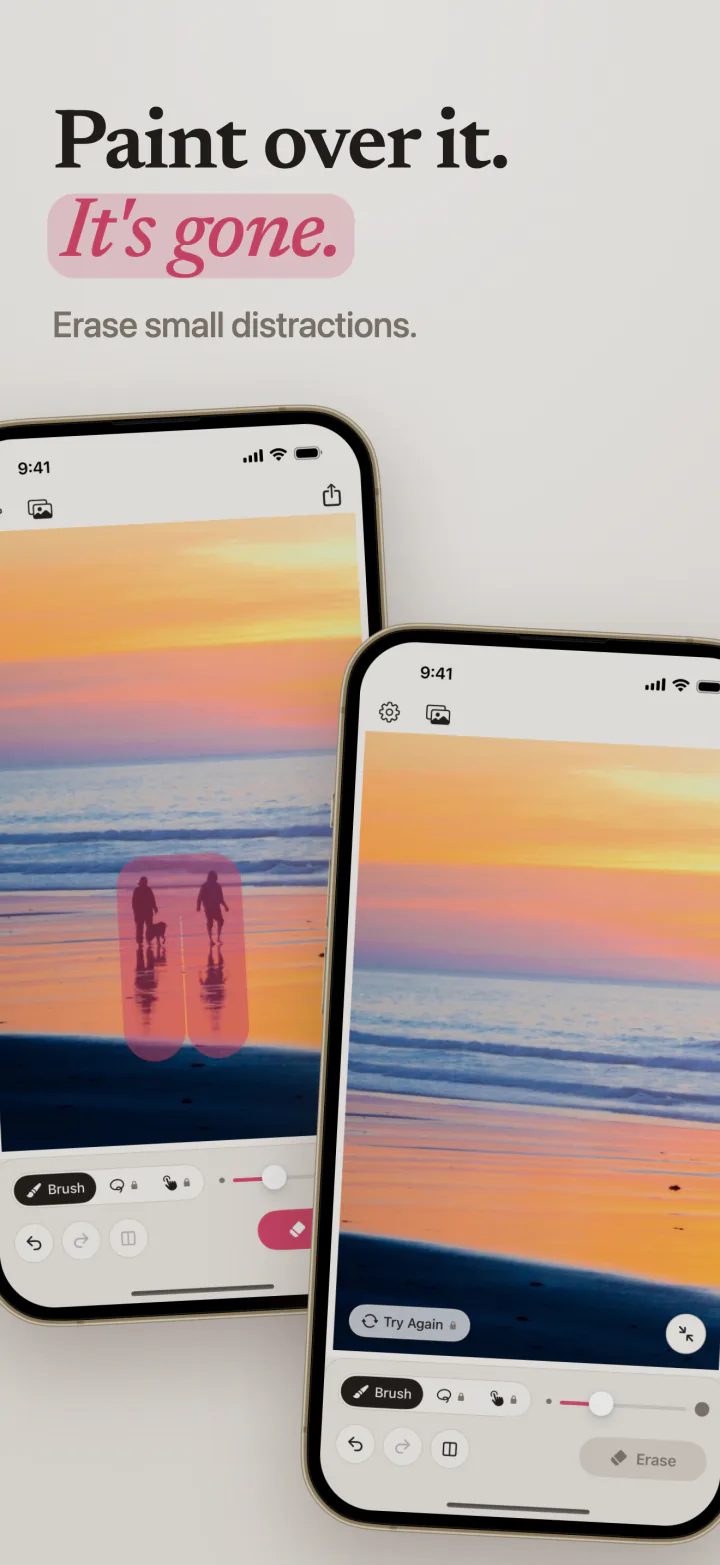
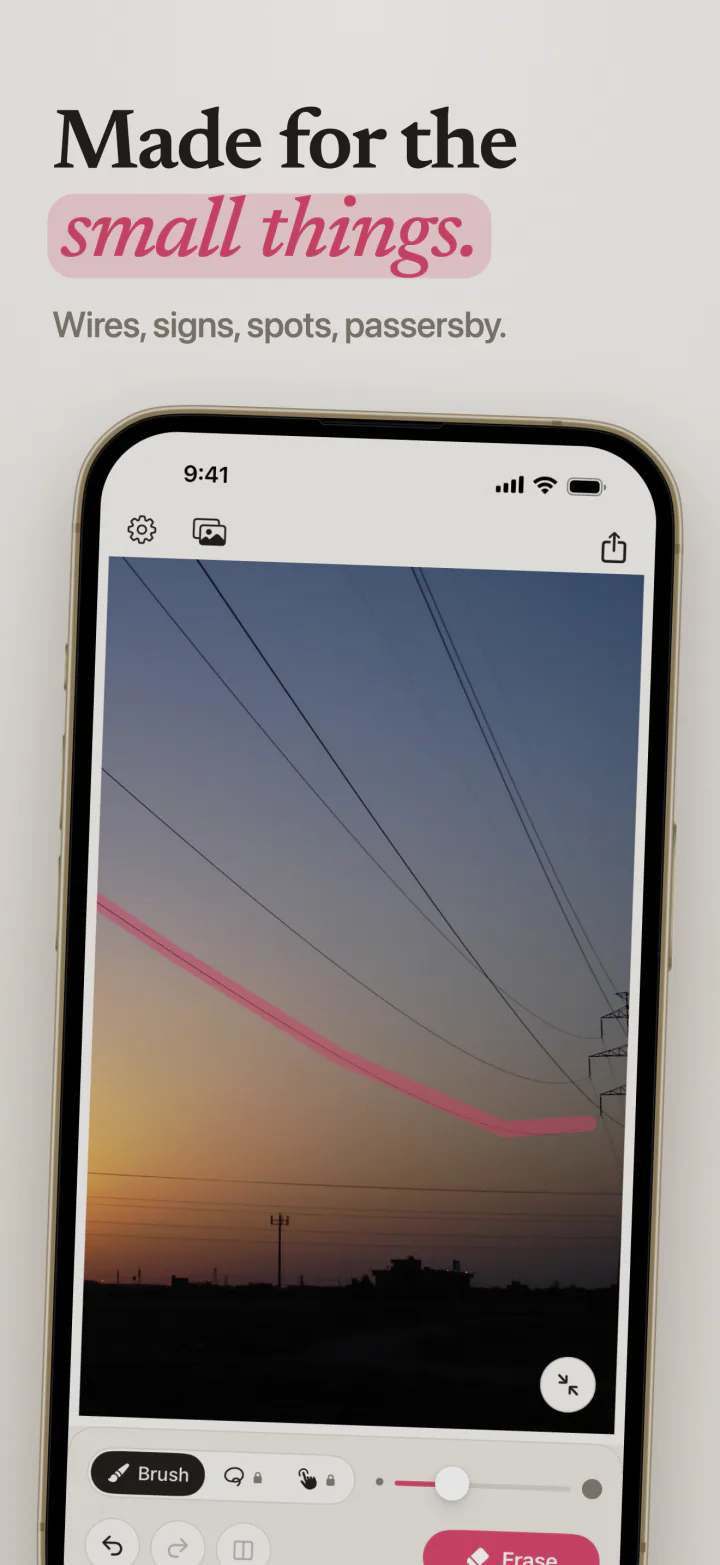
A stranger walking through the back of a beach shot, a sign, a bin, a power line across a sunset: small things like these can be erased from a photo in a few seconds, right on your iPhone.
What decides whether it looks real is size. Something small against a simple background comes out clean. Something that fills a large part of the photo, like the person standing next to you, leaves too little background to rebuild, and no tool hides that well.
The built-in way
If your iPhone supports Apple Intelligence, the Photos app has a Clean Up tool in its edit view that removes small objects. If your iPhone does not, or you want more control over what is erased, use an app that runs on the device.
Step by step with Mend
Mend is an object remover that works on any iPhone with iOS 17 or later, with no Apple Intelligence needed. Everything happens on the phone, so the photo is never uploaded.
- 1
Open the photo
Tap Choose a Photo and pick it from your library.
- 2
Zoom in
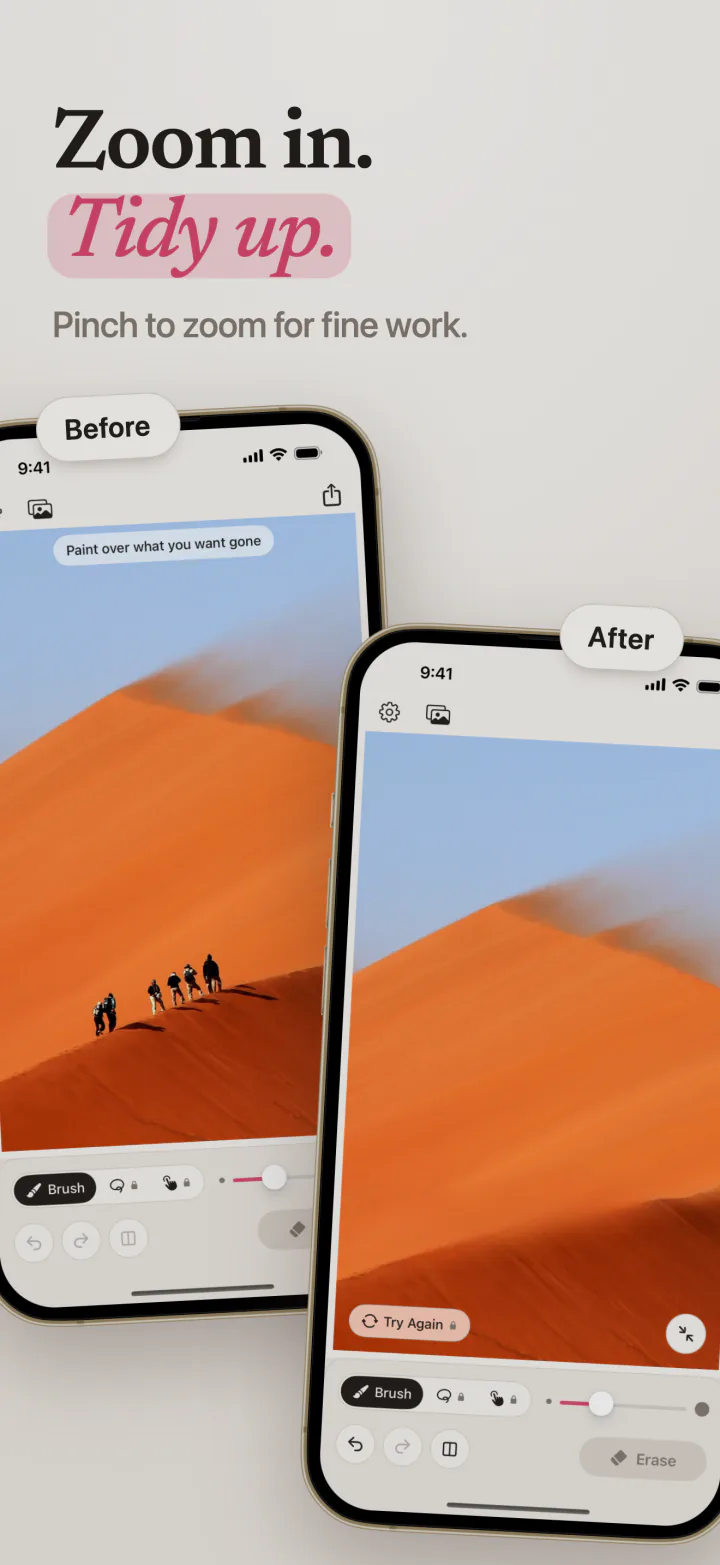
Pinch to zoom in on what you want gone. The brush stays the same size on screen, so it gets finer on the photo as you zoom.
- 3
Paint over it
Paint over the person or object, as tightly as you can. A loose stroke smears whatever is behind it.
- 4
Tap Erase
Mend fills the gap with what was probably behind it. A typical erase takes about a second.
- 5
Check against the original
Hold Compare to see the photo as it was, then let go. If the fill is not right, undo and paint more tightly.
- 6
Save it
Tap Save to Photos, or share or copy the result. Every pixel outside your paint is unchanged.
Tips for a clean result
Erase one thing at a time, and zoom in for anything small. Long, thin shapes like wires and poles come out best, and so do people far in the distance. If you paint over a large area, Mend warns you first, because large areas come out soft.
Mend Pro adds a select tool (tap a person and it is painted for you), a lasso, and Try Again, which gives a different fill for the same paint.
Questions and answers
Can I remove a person from a photo for free?
Yes. Erasing in Mend is free and unlimited, with no watermark. Free saves are 3 a day, as JPEG up to 2048 pixels. Mend Pro saves at full size with no daily limit.
Is my photo uploaded anywhere?
No. Mend has no server and no account. Every erase happens on your iPhone, and nothing is kept after you close the photo.
Does erasing lower the quality of the photo?
Only the area you painted changes. The rest of the photo is never shrunk or recompressed to be worked on.
Can I do this on iPad or Mac?
Yes. Mend runs on iPhone, iPad and Mac. On a Mac, press Return to erase and hold the space bar to compare.

Mend
Paint over it and it is gone. Free, no watermark, nothing uploaded.